Lumen Camera App User Manual


1. Welcome

Lumen Camera is a full-featured iPhone camera app built around a Liquid Glass interface, fast capture controls, professional manual tools, private gallery storage, and dedicated modes for Photo, Portrait, Video, and Cinematic Video.

This manual covers the app as it exists today: first-run setup, every capture mode, manual controls, video settings,
photo formats, filters, gallery tools, privacy features, subscriptions, support, and global preferences.


2. First Run, Permissions, And Quick Start

2.1 First-Run Onboarding

The first time you open Lumen Camera, the app shows the onboarding flow before opening the camera. After onboarding is completed, the app opens directly to the camera on future launches.

Onboarding introduces the core experience and prepares the app for camera use.

2.2 Required Permissions

Lumen Camera asks for iOS permissions only when needed:

  • Camera: Required for all photo, portrait, video, and cinematic capture.

  • Microphone: Required for video recording and audio-backed capture workflows.

  • Photos Library: Required when viewing, importing, managing, or saving to the iOS Photos library.

  • Add Photos Only: Used when saving captures directly to Photos.

  • Motion: Used for the level indicator and orientation-aware camera UI.

  • Face ID / Touch ID / Optic ID: Used only if you enable Gallery Lock biometrics.

2.3 Quick Start Guide

After onboarding, Lumen Camera presents a full-screen Quick Start Guide over the camera. The guide is also available later from Settings -> Quick Start Guide.

The Quick Start Guide uses swipeable slides with screenshots and short explanations. It introduces the Liquid Glass UI, capture modes, manual controls, filters, gallery, and privacy features.

3. Main Camera Interface

3.1 Viewfinder

The viewfinder is the live camera preview. Most capture controls float above it so you can keep the subject visible while adjusting settings.

The interface adapts between Photo/Portrait and Video/Cinematic layouts. Photo and Portrait use a photo-oriented preview area, while Video and Cinematic expand to a video-oriented preview.

3.2 Capture Mode Selector

Use the main mode selector to switch between:

  • Photo: Standard still-photo capture with Auto, Semi-Manual, and Manual exposure controls.

  • Portrait: Depth-aware still-photo capture with adjustable blur.

  • Video: Standard video recording with resolution, frame rate, codec, stabilization, audio, and color profile controls.

  • Cinematic: Video recording with Apple's Cinematic Video focus tracking and adjustable blur.


3.3 Shutter Button

The shutter button changes behavior by mode:

  • Photo: Captures a still photo.

  • Portrait: Captures a portrait photo and may show a processing indicator while depth processing finishes.

  • Video: Starts or stops recording.

  • Cinematic: Starts or stops cinematic recording.

If a timer is active in still-photo modes, pressing the shutter starts the countdown instead of capturing immediately. Pressing again during countdown cancels it.

3.4 Gallery Button

The gallery button opens Lumen Camera's built-in gallery. During video recording, the gallery button area is used for video pause/resume controls.

3.5 Settings / Liquid Glass Menu

The top menu opens a Liquid Glass control sheet. This sheet changes depending on whether you are in photo-style modes or video-style modes.

Common controls include Flash, Timer, Grid, Gallery, Settings, and Level. Photo controls include Format, Aspect Ratio, and Save Destination. Video controls include Resolution, Frame Rate, Color, Audio, Stabilization, and Codec.


4. Universal Capture Controls

4.1 Switching Cameras

Use the camera switch button to move between front and rear cameras. The app handles mode-specific transitions and reconfigures the session for the new camera.

Some features are only available on the rear camera or on supported devices. If a selected mode or feature is unavailable after switching cameras, Lumen Camera falls back to a compatible mode or setting and shows a toast message.

4.2 Zoom Pills

Zoom pills provide fast jumps between common focal lengths such as ultra-wide, wide, telephoto, and extended zoom levels where available.

The exact zoom pills depend on your iPhone's camera hardware. Multi-camera iPhones can switch between physical lenses and virtual-device zoom ranges.

4.3 Zoom Rail

Pinch the viewfinder or long-press a zoom pill to open the continuous zoom rail. The zoom rail supports fine adjustments and uses magnetic detents around key zoom values.

In Semi-Manual and Manual modes, crossing a physical lens boundary can trigger a camera device switch. If a manual setting is no longer compatible with the new lens, the app resets that setting to Auto and shows a toast.

4.4 Tap To Focus And Exposure

In Photo and Video style modes, tap the viewfinder to focus and meter on the subject. A focus reticle appears where you tapped.

In Auto Photo mode, you can adjust exposure compensation after focusing by dragging vertically on the exposure control. This changes EV without entering Manual mode.

4.5 AE/AF Lock

Long-press the viewfinder to lock focus and exposure where supported. The AE/AF lock label appears while the lock is active.

Use AE/AF Lock when you want consistent exposure or focus while recomposing.

4.6 Flash

Flash supports three modes:

  • Off: Flash does not fire.

  • Auto: The app lets the camera decide when flash is needed.

  • On: Flash is requested for supported still-photo captures.

Tap Flash to cycle modes. Long-press Flash or use the Liquid Glass menu to choose a specific mode.

In Video mode, flash/torch behavior is applied for recording when supported by the current camera.

4.7 Timer

The still-photo timer supports:

  • Off

  • 3 seconds

  • 5 seconds

  • 10 seconds

  • 30 seconds

Tap Timer to cycle, or long-press it to choose a duration directly. When active, the timer displays a badge and the viewfinder shows a countdown after you press the shutter.

4.8 Grid

The grid helps with composition and alignment. Available grid states include:

  • Off

  • 3x3

  • 4x4

Use the Grid button or the Liquid Glass menu to cycle or choose the grid type.

4.9 Level

The level indicator uses device motion to help you keep the horizon straight. Toggle it from the Liquid Glass menu.

4.10 Macro

On supported rear-camera devices, Lumen Camera supports Apple-style macro behavior. Macro is enabled by default and allows the system to switch to the ultra-wide camera for close subjects.

When the app detects close-focus conditions, it can show a macro hint button. You can use it to control whether auto-macro switching is allowed.

Macro is disabled in modes where it conflicts with the capture pipeline, including Portrait, Cinematic, and Semi/Manual physical-camera workflows.

4.11 Volume Button Shutter

When enabled in Settings, the physical volume buttons can trigger capture. In Photo and Portrait they act like the shutter. In Video and Cinematic they follow the active recording behavior where supported by the current mode.

4.12 Haptics And Toasts

Lumen Camera uses haptics for mode changes, control adjustments, capture feedback, warnings, and successful actions. Toast messages provide short status updates and guardrail warnings.

You can turn haptics and non-critical toast messages on or off in Settings. Critical warnings and permission errors may still appear when needed.

5. Photo Mode

Photo mode is the primary still-camera mode. It supports Auto, Semi-Manual, and Manual exposure workflows; photo formats; aspect ratios; filters; save destinations; macro; flash; timer; grid; level; focus/exposure overlays, and gallery integration.

5.1 Auto Photo

Auto Photo is the default point-and-shoot experience. The camera handles exposure, ISO, shutter, focus, and white balance automatically.

Use Auto Photo when you want the fastest capture path:

  • Tap to focus and meter.

  • Drag exposure compensation when available.

  • Use zoom pills or the zoom rail for lens changes.

  • Use flash, timer, grid, level, filters, macro, aspect ratio, histogram, and zebras as needed.

5.2 Semi-Manual Photo

Semi-Manual mode is a linked exposure mode. You control either ISO or shutter speed, and Lumen Camera calculates the other value to preserve the exposure baseline.

Use Semi-Manual when you want creative control without fully balancing exposure yourself:

  • Lock ISO to control noise level; the app calculates shutter speed.

  • Lock Shutter to freeze motion or allow motion blur; the app calculates ISO.

  • Use EV compensation to intentionally brighten or darken the linked exposure target.

  • If the calculated value reaches hardware limits, the app shows a warning toast.

5.3 Manual Photo

Manual mode gives independent control over supported camera parameters:

  • ISO: Controls sensor gain and image noise.

  • Shutter: Controls exposure time and motion blur.

  • Focus: Locks lens position for manual focusing.

  • White Balance: Locks color temperature using presets or Kelvin.

  • Zoom: Opens the zoom rail from the manual tools.

  • Tools: Opens histogram, Focus Peaking, Focus Loupe, and Zebras controls.

Manual mode uses an exposure meter to show how far your manual settings are from the current auto-exposure baseline.

5.4 Photo Aspect Ratios

Photo mode supports these aspect ratios:

  • 4:3: Native camera aspect.

  • 1:1: Square.

  • 16:9: Wide frame.

  • 4:5: Portrait-oriented social crop.

Tap the aspect ratio control to cycle through ratios. Long-press it or open the Liquid Glass menu for direct selection. The app applies a crop mask in the viewfinder and crops the captured image after capture while preserving metadata where possible.

Aspect ratio can be remembered separately for front and rear cameras.

5.5 Photo Capture Processing

After capture, Lumen Camera may process the image depending on your selected format, filter, auto-enhance setting, and aspect ratio. Some captures complete instantly; others may show a processing indicator or toast.

Examples:

  • Standard HEIF captures can be auto-enhanced if Auto Enhance is enabled.

  • Lumen Enhanced captures use the Lumen processing pipeline.

  • Filtered captures apply the selected creative filter.

  • Non-4:3 aspect ratios are cropped after capture for non-RAW formats.

6. Portrait Mode

Portrait mode captures depth-aware still photos with adjustable background blur. It uses the camera's depth capabilities and Lumen Camera's portrait processing pipeline.

6.1 Entering Portrait Mode

Select Portrait from the mode selector. Lumen Camera configures the camera for depth capture and disables incompatible controls while Portrait is active.

If the current camera or format cannot support Portrait, the app shows a warning and returns to a compatible mode.

6.2 Portrait Blur

Portrait mode adds a blur control to the orbital hub. Use it to adjust blur intensity before capture.

The live blur preview is an estimate. The final captured portrait uses the high-quality capture pipeline and may look more accurate than the preview.

6.3 Depth Overlay

When supported by the active Portrait configuration, Portrait mode can show a creative depth-map overlay. The overlay visualizes depth as a heat-map style preview so you can see how the camera interprets near and far areas.

Use this when you want to understand whether the subject and background are being separated clearly.

6.4 Portrait Guardrails

Portrait mode can warn when the scene is difficult for depth capture. You may see guidance when:

  • The subject is too close.

  • The subject is too far.

  • The scene is too flat for reliable separation.

  • The scene is too dark.

  • Depth data is unavailable.

Follow the toast guidance, adjust distance or lighting, and try again.

6.5 Portrait Capture

Press the shutter to capture a portrait photo. Lumen Camera captures the image and depth information, then renders the final blur result. The shutter may show a processing indicator while the final portrait is prepared.

6.6 Portrait Limitations

Portrait mode has stricter requirements than Photo mode:

  • RAW formats are not used for Portrait capture; the app falls back to a compatible standard format when necessary.

  • Macro is disabled because auto-macro switching conflicts with depth capture.

  • Semi-Manual and Manual exposure controls are disabled in Portrait mode.

  • Some depth features depend on device hardware, camera position, lighting, and subject distance.

7. Video Mode

Video mode records standard video with professional settings for resolution, frame rate, codec, bitrate, stabilization, audio, and color profile.

7.1 Starting And Stopping Recording

Select Video from the mode selector. Press the shutter to start recording. Press it again to stop.

While recording, Lumen Camera shows:

  • A recording timer.

  • A red recording indicator.

  • Recording state changes.

  • Audio level updates in the manual/status UI where available.

  • Pause/resume control in Video mode.

7.2 Pause And Resume

In standard Video mode, a pause/resume control appears during recording. Tap pause to pause recording, then tap play to resume. The HUD shows a paused state while recording is paused.

Cinematic mode uses a different recording pipeline and does not expose the standard Video pause button.

7.3 Video Resolution

Video resolution can be changed from Settings -> Video Format or the Video Liquid Glass menu.

Supported options are device-dependent and include:

  • 720p HD

  • 1080p HD

  • 4K UHD

If the selected resolution is unavailable on the current device or camera, Lumen Camera falls back to the best available compatible setting.

7.4 Frame Rate

Frame rate controls motion cadence and slow-motion capability. Device-dependent options include:

  • 24 fps

  • 25 fps

  • 30 fps

  • 60 fps

  • 120 fps

  • 240 fps

Not every frame rate is available at every resolution. If a selected frame rate is incompatible with the current resolution, the app selects a compatible fallback.

7.5 Codec

Video codec controls compression format:

  • H.264: Broad compatibility.

  • HEVC (H.265): More efficient compression and required for some advanced color workflows.

HDR and Apple Log require HEVC. If a 10-bit color mode is active, H.264 may be unavailable or coerced to HEVC.

7.6 Bitrate

Bitrate controls video data rate and file size:

  • Auto: App-selected bitrate.

  • Low: Smaller files.

  • Medium: Balanced size and quality.

  • High: Higher quality and larger files.

Bitrate scales with resolution and frame rate so higher frame rates receive more data.

7.7 Stabilization

Video stabilization options include:

  • Auto: Default stabilized behavior.

  • Off: Full field of view with no electronic stabilization.

  • Standard: Moderate stabilization.

  • Cinematic: Smoother stabilization where supported.

  • Cinematic Extended: Stronger stabilization where supported.

Some stabilization modes are unavailable on some devices or with Apple Log. When Apple Log is active, stabilization is limited to supported modes such as Off and Standard.

Lumen Camera can temporarily disable stabilization when low-latency tools are active, including creative filters, focus peaking, or focus loupe, to keep preview and recording responsive.

7.8 Color Profile

Video color profile options include:

  • Standard: Standard dynamic range video.

  • HDR (Dolby Vision): High dynamic range video where supported.

  • Apple Log: Flat professional color profile for grading on supported devices.

HDR and Apple Log availability depends on device hardware, camera, format, and current settings.

7.9 Audio Source

Video recording uses the microphone and supports audio routing through the iOS audio session. Lumen Camera can retain a preferred audio input when one is selected and reapply it across recording configuration and route changes.

Use the Audio control in the Video Liquid Glass menu to choose or inspect available audio input behavior where supported.

7.10 Video Framing

Video and Cinematic use a video-style preview layout and are framed for 16:9 recording. The camera UI expands the preview and adjusts the bottom controls when entering Video or Cinematic so the recording frame is clear.

Photo aspect ratio controls are disabled in Video and Cinematic mode. Use Photo mode aspect ratios for still-photo crops; use Video mode settings for resolution, frame rate, codec, bitrate, stabilization, and color profile.

7.11 Filters In Video

Creative filters can be previewed live in Video mode and applied to recorded output. When a filter is active, Lumen Camera may disable video stabilization to reduce latency and avoid a laggy preview.

Long-press the viewfinder while a filter is active to compare filtered and unfiltered preview where supported.

8. Cinematic Mode

Cinematic mode records video with Cinematic Video depth/focus behavior on supported devices. It adds focus tracking, focus lock, and blur controls to the video workflow.

8.1 Entering Cinematic

Select Cinematic from the mode selector. Lumen Camera configures the session for cinematic recording and disables incompatible controls.

If Cinematic is unavailable on the current camera or device, the app shows a warning and falls back to a compatible mode. Cinematic is not available on all devices or all cameras.

8.2 Cinematic Focus Tracking

Cinematic uses subject detection and focus tracking:

  • Tap a detected subject to track it.

  • Tap a tracked subject to toggle tracking strength.

  • Tap an empty area to return to weaker automatic tracking.

  • Long-press the preview to set fixed focus at a point.

8.3 Continuous / Lock Focus Toggle

Cinematic includes a compact focus mode toggle:

  • CONT: Continuous/automatic ML-guided focus behavior.

  • LOCK: Stronger subject lock until the subject leaves the scene.

Use Lock when you want the camera to stay with a specific subject instead of automatically changing focus.

8.4 Cinematic Blur And EV

Cinematic exposes blur controls through the orbital hub. It also supports EV adjustment in auto-style cinematic control, so you can tune brightness without entering full manual video controls.

8.5 Cinematic Recording

Press the shutter to start cinematic recording. Press again to stop. Cinematic recording uses its own capture pipeline and may wait briefly while video lookahead buffers drain at stop time.

8.6 Cinematic Limitations

Cinematic mode disables or changes some features:

  • Manual and Semi-Manual exposure modes are reset to Auto when entering Cinematic.

  • Macro is disabled.

  • Regular tap-to-focus is replaced with Cinematic tap-to-track.

  • Some focus, stabilization, color, and resolution options depend on device support.

  • If front-camera Cinematic is unavailable, the app falls back to Video or another compatible mode.


9. Manual Controls And Professional Tools

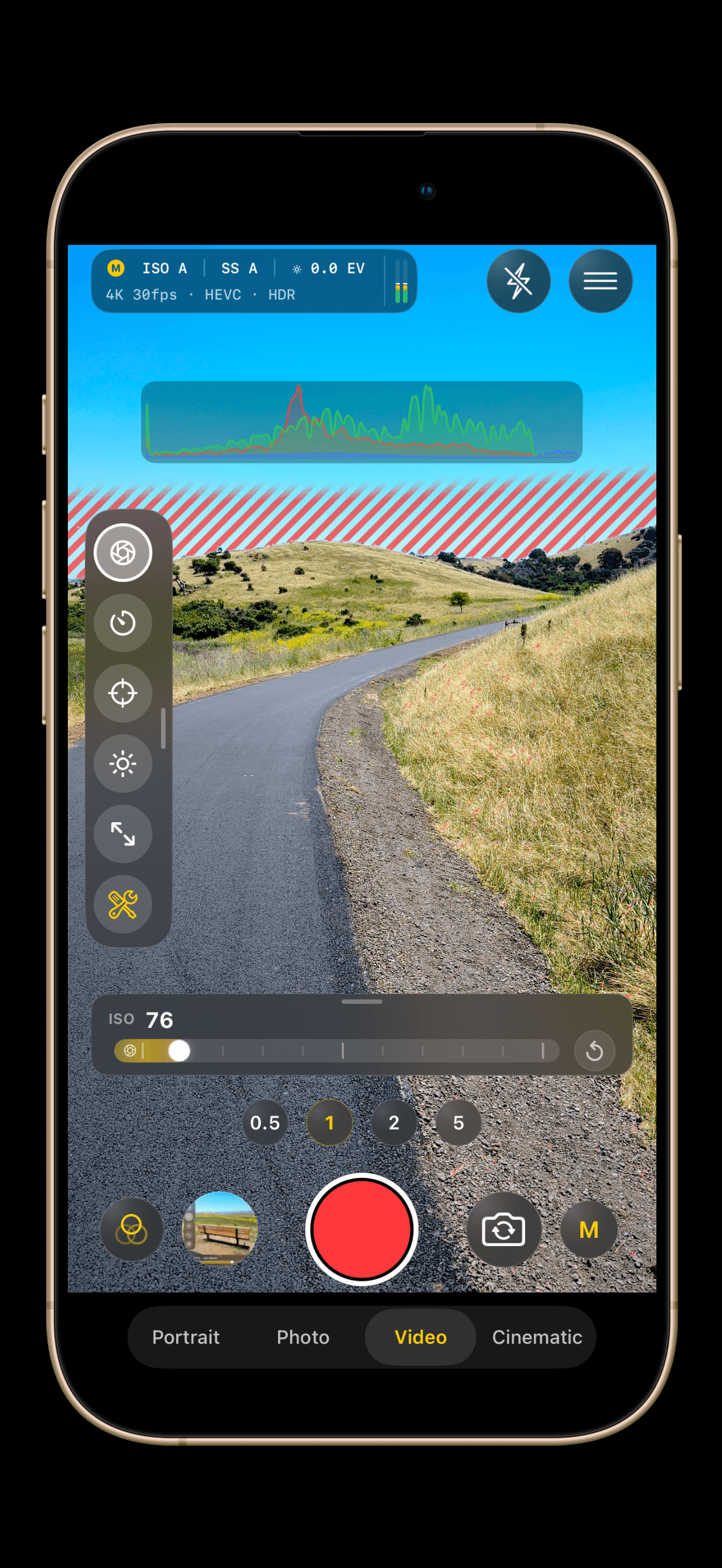
Lumen Camera's manual tools are centered around the Auto/Semi/Manual exposure mode button, the left-edge Orbital Control Hub, the Bottom Control Strip, and the Manual Status Chip.

9.1 Auto / Semi / Manual Button

Tap the exposure mode button to open the glass mode menu, then choose:

  • A: Auto.

  • S: Semi-Manual.

  • M: Manual.

Semi-Manual and Manual can appear dimmed or unavailable in modes that do not support manual focus/exposure workflows, such as Portrait and Cinematic.

9.2 Orbital Control Hub

The Orbital Control Hub appears on the left side in Semi-Manual, Manual, Portrait, and Cinematic contexts. It contains parameter buttons for the controls available in the current mode.

Depending on mode, it can include:

  • ISO

  • Shutter

  • Focus

  • White Balance

  • EV

  • Zoom

  • Blur

  • Depth Overlay

  • Tools

Buttons turn active when a setting is overridden or enabled.

In plain Auto mode, the hub can expose quick access to Zoom and Tools so you can use visualization aids such as Histogram and Zebras without switching to Manual. In Portrait mode, the hub focuses on Portrait-specific controls such as Blur and Depth Overlay. In Cinematic mode, the hub can include Blur, EV, and Tools.

9.3 Collapsing The Hub

The hub can collapse to keep the viewfinder clear. A compact pill/indicator remains available so you can expand the hub again.

9.4 Bottom Control Strip

When you select a parameter in the orbital hub, the Bottom Control Strip slides out above the lower camera controls. It provides sliders, presets, and tool toggles for the selected parameter.

The strip auto-hides after a short idle window, and tool submenus reset that idle timer when dismissed so you have time to make a selection.

9.5 Manual Status Chip

The Manual Status Chip shows current exposure mode and important active values such as ISO, shutter, and EV. In manual modes, it can show which parameters are overridden.

Use it as your at-a-glance readout while shooting.

9.6 ISO Control

ISO controls sensor gain:

  • Lower ISO usually means cleaner images.

  • Higher ISO helps in low light but can add noise.

  • Semi-Manual can lock ISO and calculate shutter.

  • Manual sets ISO independently.

If a lens switch makes the selected ISO unavailable, Lumen Camera resets ISO to Auto and shows a toast.

9.7 Shutter Control

Shutter controls exposure time:

  • Faster shutter freezes motion.

  • Slower shutter allows more light and motion blur.

  • Semi-Manual can lock shutter and calculate ISO.

  • Manual sets shutter independently.

If a lens switch makes the selected shutter unavailable, Lumen Camera resets shutter to Auto and shows a toast.

9.8 Exposure Compensation (EV)

EV adjusts brightness without requiring full manual control.

EV appears in:

  • Auto Photo, through tap/drag exposure behavior.

  • Semi-Manual, where it changes the linked exposure target.

  • Cinematic auto controls, where it can brighten or darken the video image.

In full Manual mode, exposure is controlled directly with ISO and shutter, and the exposure meter becomes the main brightness guide.

EV updates are throttled while dragging for smooth UI interaction, then flushed when adjustment ends so the camera lands on the final selected value.

9.9 Focus Control

Focus control lets you switch from continuous autofocus to manual focus. The manual focus slider moves lens position from near focus toward infinity where supported.

If the active lens does not support locked manual focus, the app shows a warning or resets focus to Auto.

9.10 White Balance

White Balance controls color temperature. Available presets include:

  • Auto

  • Tungsten

  • Fluorescent

  • Sunny

  • Cloudy

  • Shade

  • Kelvin

Use Kelvin for direct color-temperature control. If the current camera does not support locked white balance, the app keeps or returns to Auto White Balance.

9.11 Exposure Meter

The exposure meter compares your manual settings against the camera's current baseline. It helps you judge whether the image is underexposed, overexposed, or near neutral.

Use it like a DSLR-style light meter when setting ISO and shutter manually. The current exposure offset is surfaced in the Manual Status Chip rather than as a separate floating meter. The meter follows the camera's exposure target offset and refreshes its reference when you enter manual modes or switch lenses.

8. Cinematic Mode

Cinematic mode records video with Cinematic Video depth/focus behavior on supported devices. It adds focus tracking, focus lock, and blur controls to the video workflow.

8.1 Entering Cinematic

Select Cinematic from the mode selector. Lumen Camera configures the session for cinematic recording and disables incompatible controls.

If Cinematic is unavailable on the current camera or device, the app shows a warning and falls back to a compatible mode. Cinematic is not available on all devices or all cameras.

8.2 Cinematic Focus Tracking

Cinematic uses subject detection and focus tracking:

  • Tap a detected subject to track it.

  • Tap a tracked subject to toggle tracking strength.

  • Tap an empty area to return to weaker automatic tracking.

  • Long-press the preview to set fixed focus at a point.

8.3 Continuous / Lock Focus Toggle

Cinematic includes a compact focus mode toggle:

  • CONT: Continuous/automatic ML-guided focus behavior.

  • LOCK: Stronger subject lock until the subject leaves the scene.

Use Lock when you want the camera to stay with a specific subject instead of automatically changing focus.

8.4 Cinematic Blur And EV

Cinematic exposes blur controls through the orbital hub. It also supports EV adjustment in auto-style cinematic control, so you can tune brightness without entering full manual video controls.

8.5 Cinematic Recording

Press the shutter to start cinematic recording. Press again to stop. Cinematic recording uses its own capture pipeline and may wait briefly while video lookahead buffers drain at stop time.

8.6 Cinematic Limitations

Cinematic mode disables or changes some features:

  • Manual and Semi-Manual exposure modes are reset to Auto when entering Cinematic.

  • Macro is disabled.

  • Regular tap-to-focus is replaced with Cinematic tap-to-track.

  • Some focus, stabilization, color, and resolution options depend on device support.

  • If front-camera Cinematic is unavailable, the app falls back to Video or another compatible mode.

9. Manual Controls And Professional Tools

Lumen Camera's manual tools are centered around the Auto/Semi/Manual exposure mode button, the left-edge Orbital Control Hub, the Bottom Control Strip, and the Manual Status Chip.

9.1 Auto / Semi / Manual Button

Tap the exposure mode button to open the glass mode menu, then choose:

  • A: Auto.

  • S: Semi-Manual.

  • M: Manual.

Semi-Manual and Manual can appear dimmed or unavailable in modes that do not support manual focus/exposure workflows, such as Portrait and Cinematic.

9.2 Orbital Control Hub

The Orbital Control Hub appears on the left side in Semi-Manual, Manual, Portrait, and Cinematic contexts. It contains parameter buttons for the controls available in the current mode.

Depending on mode, it can include:

  • ISO

  • Shutter

  • Focus

  • White Balance

  • EV

  • Zoom

  • Blur

  • Depth Overlay

  • Tools

Buttons turn active when a setting is overridden or enabled.

In plain Auto mode, the hub can expose quick access to Zoom and Tools so you can use visualization aids such as Histogram and Zebras without switching to Manual. In Portrait mode, the hub focuses on Portrait-specific controls such as Blur and Depth Overlay. In Cinematic mode, the hub can include Blur, EV, and Tools.

9.3 Collapsing The Hub

The hub can collapse to keep the viewfinder clear. A compact pill/indicator remains available so you can expand the hub again.

9.4 Bottom Control Strip

When you select a parameter in the orbital hub, the Bottom Control Strip slides out above the lower camera controls. It provides sliders, presets, and tool toggles for the selected parameter.

The strip auto-hides after a short idle window, and tool submenus reset that idle timer when dismissed so you have time to make a selection.

9.5 Manual Status Chip

The Manual Status Chip shows current exposure mode and important active values such as ISO, shutter, and EV. In manual modes, it can show which parameters are overridden.

Use it as your at-a-glance readout while shooting.

9.6 ISO Control

ISO controls sensor gain:

  • Lower ISO usually means cleaner images.

  • Higher ISO helps in low light but can add noise.

  • Semi-Manual can lock ISO and calculate shutter.

  • Manual sets ISO independently.

If a lens switch makes the selected ISO unavailable, Lumen Camera resets ISO to Auto and shows a toast.

9.7 Shutter Control

Shutter controls exposure time:

  • Faster shutter freezes motion.

  • Slower shutter allows more light and motion blur.

  • Semi-Manual can lock shutter and calculate ISO.

  • Manual sets shutter independently.

If a lens switch makes the selected shutter unavailable, Lumen Camera resets shutter to Auto and shows a toast.

9.8 Exposure Compensation (EV)

EV adjusts brightness without requiring full manual control.

EV appears in:

  • Auto Photo, through tap/drag exposure behavior.

  • Semi-Manual, where it changes the linked exposure target.

  • Cinematic auto controls, where it can brighten or darken the video image.

In full Manual mode, exposure is controlled directly with ISO and shutter, and the exposure meter becomes the main brightness guide.

EV updates are throttled while dragging for smooth UI interaction, then flushed when adjustment ends so the camera lands on the final selected value.

9.9 Focus Control

Focus control lets you switch from continuous autofocus to manual focus. The manual focus slider moves lens position from near focus toward infinity where supported.

If the active lens does not support locked manual focus, the app shows a warning or resets focus to Auto.

9.10 White Balance

White Balance controls color temperature. Available presets include:

  • Auto

  • Tungsten

  • Fluorescent

  • Sunny

  • Cloudy

  • Shade

  • Kelvin

Use Kelvin for direct color-temperature control. If the current camera does not support locked white balance, the app keeps or returns to Auto White Balance.

9.11 Exposure Meter

The exposure meter compares your manual settings against the camera's current baseline. It helps you judge whether the image is underexposed, overexposed, or near neutral.

Use it like a DSLR-style light meter when setting ISO and shutter manually. The current exposure offset is surfaced in the Manual Status Chip rather than as a separate floating meter. The meter follows the camera's exposure target offset and refreshes its reference when you enter manual modes or switch lenses.

9.12 Tools Panel

The Tools panel groups Lumen Camera's live visualization aids:

  • Histogram: Luma/RGB exposure distribution.

  • Focus Peaking: Manual-focus edge highlight.

  • Focus Loupe: Magnified focusing aid.

  • Zebras: Highlight exposure warning stripes.

Availability depends on mode:

  • Auto Photo / Auto Video: Histogram and Zebras are available.

  • Semi-Manual / Manual: Histogram, Focus Peaking, Focus Loupe, and Zebras are available.

  • Portrait: Tools are hidden because the depth-blurred preview does not reflect the final exposure surface reliably enough for zebras and other overlays.

  • Cinematic: Histogram and Zebras are available; Focus Peaking and Loupe are disabled because Cinematic uses its own focus-tracking system.

Unavailable tools remain discoverable in the panel and show an explanatory toast if tapped.

9.13 Focus Peaking

Focus Peaking highlights high-contrast edges so you can see what is sharp. It is GPU-accelerated and designed for manual focusing.

Peaking is available from the Tools panel in Semi-Manual and Manual modes. It can also affect video stabilization because low-latency tools require a responsive preview.

Focus Peak color can be changed from Settings -> Focus & Exposure Tools -> Focus Peak. Available colors are Yellow, White, Red, and Green. Green is the default.

9.14 Focus Loupe

Focus Loupe provides a magnified circular view for critical manual focus.

Loupe modes include:

  • Off: Hidden.

  • Auto: Appears during focus adjustment.

  • On: Remains visible.

The loupe can include a center crosshair and can be repositioned on the viewfinder.

9.15 Histogram

The histogram helps evaluate brightness and color distribution.

Histogram options include:

  • Off

  • Luma

  • RGB

  • Continuous / digital curve style

  • Discrete / analog bar style

Tap the histogram overlay or use the Tools panel to cycle through display modes.

9.16 Zebras

Zebras are an exposure-warning overlay. When enabled, Lumen Camera draws animated diagonal stripes over bright regions that meet or exceed the selected luma threshold. This helps you spot highlights that are close to clipping before you capture.

Open Tools -> Zebras to choose:

  • Off: Disable Zebras.

  • 80% Highlights: Show stripes on bright but still safer highlight regions.

  • 90% Bright: Warn on hotter highlights.

  • 95% Hot: Warn near clipping. This is the default threshold.

  • 100% Clipped: Show stripes only on fully clipped highlights.

Zebras are available from the Tools panel in Auto, Semi-Manual, Manual, Video, and Cinematic contexts where the live preview represents the capture exposure. They are hidden in Portrait mode because the depth-blurred preview path can be misleading for exposure-warning overlays.

Zebra style can be changed from Settings -> Focus & Exposure Tools -> Zebras. Available stripe colors are Yellow, White, Red, and Green. Red is the default. If Reduce Motion is enabled in iOS accessibility settings, zebra stripe animation is disabled.

During video recording, Lumen Camera throttles zebra processing so the recording pipeline keeps priority.

9.17 Resetting Manual Settings

You can return to Auto in several ways:

  • Switch the exposure mode button back to Auto.

  • Snap individual sliders back to their Auto point where supported.

  • Use reset actions from the status chip or control panels.

  • Let the app reset settings automatically when a lens or mode cannot support the current override.

    10. Filters And Creative Looks

Lumen Camera includes live creative filters powered by Core Image and Metal-backed processing.

10.1 Available Filters

The filter set includes:

  • Original

  • Vivid

  • Crisp

  • Warm

  • Noir

  • Alpine

  • Chrome

  • Fade

  • Cool

  • Cinematic

  • Bloom

  • Sepia

  • Instant

  • Lucid

  • Mono

  • High Contrast B&W

  • Thermal

  • Comic

10.2 Live Preview

Filters preview live in the viewfinder. The filter picker shows thumbnails and highlights the selected look.

Long-press the viewfinder while a filter is active to compare against the unfiltered view where supported.

10.3 Filtered Photo Capture

For Standard and Lumen Enhanced photo captures, filters are applied during capture processing.

If a RAW format is selected while a creative filter is active, Lumen Camera processes the image into a filtered standard image rather than saving filtered RAW data. A toast warns when a RAW workflow falls back because of filtering.

10.4 Filtered Video Capture

Filters can be applied to video preview and recording. To keep filtered video responsive, the app may override video stabilization while a filter is active.

11. Photo Formats, Resolution, And Save Destination

Photo format options live in Settings -> Format & Quality and in the Photo Liquid Glass menu.

11.1 Standard

Standard is the default compressed photo format. It saves HEIF-style output and is available on all supported devices.

Standard resolution options:

  • Optimized: Uses 24 MP where supported, otherwise falls back to 12 MP.

  • Maximum: Uses the highest supported still-photo resolution, including 48 MP on compatible devices.

11.2 Lumen Enhanced

Lumen Enhanced is Lumen Camera's high-quality computational photo pipeline. It is available on devices that support the required high-resolution capture path.

It is designed to balance detail, file size, metadata preservation, and image quality.

11.3 Apple ProRAW

Apple ProRAW saves DNG files for advanced editing. Availability depends on device support.

ProRAW resolution options:

  • 12 MP

  • 48 MP where supported

RAW formats require saving to the iOS Photos library and cannot be saved to the app-private gallery.

11.4 Bayer RAW

Bayer RAW saves sensor RAW DNG files where supported by the camera hardware.

Like ProRAW, Bayer RAW requires the iOS Photos library destination and cannot be saved to the app-private gallery.

11.5 Format Availability

Format availability is device-dependent:

  • Standard is always available.

  • Lumen Enhanced requires high-resolution support.

  • ProRAW requires Apple ProRAW support.

  • Bayer RAW requires RAW pixel format support.

Unavailable formats appear disabled with an explanation in settings.

11.6 Save Destination

Save Destination controls where captures go:

  • Photos: Saves to the iOS Photos library.

  • App: Saves privately inside Lumen Camera's app storage.

RAW formats require Photos. If you choose RAW while Save Destination is App, the app prompts you to switch to Photos.

11.7 Auto Enhance

Auto Enhance applies an intelligent Core Image enhancement pass to standard photos when enabled. It is controlled from Settings.

12. Gallery

Lumen Camera includes a unified gallery for app-private captures and iOS Photos library items.

12.1 Gallery Tabs

The gallery has four tabs:

  • App: Captures saved inside Lumen Camera.

  • Photos: Items from the iOS Photos library.

  • All: A combined view.

  • Faves: Favorited items.

The initial tab follows your current Save Destination preference.

12.2 Gallery Grid

The grid adapts to orientation and device:

  • iPhone portrait uses fewer columns.

  • iPhone landscape uses more columns.

  • iPad layouts use larger multi-column grids.

The gallery includes a date header, pull-to-refresh, loading state, and empty-state messaging.

12.3 Viewing Items

Tap an item to open the detail viewer. The viewer supports gestures such as zooming and dismissing back to the grid.

12.4 Favorites

Use the heart/favorite control to mark items. Favorited items appear in the Faves tab, and favorite changes refresh the gallery.

12.5 Multi-Select

Tap Select or long-press/drag in the grid to enter multi-select. You can select multiple items for batch actions.

Batch actions include:

  • Share selected items.

  • Delete selected items.

12.6 Sharing And Export

Gallery items can be shared through the iOS share sheet. App-private items can be exported or shared without first appearing in Photos unless you choose to save/export them there.

12.7 Deleting

Deleting app-private items removes them from Lumen Camera storage. Deleting Photos library items follows iOS Photos permissions and confirmation behavior.

12.8 Gallery Appearance

Gallery Mode in Settings lets you force the gallery to:

  • Light

  • Dark

This is independent of the main camera UI, which is designed around a dark camera interface.

12.9 Gallery HDR

Gallery HDR can be enabled or disabled from Settings. When enabled, the gallery uses HDR-capable display behavior where supported.

13. Gallery Lock And Privacy

Gallery Lock protects the in-app gallery using a passcode and optional biometrics.

13.1 Enabling Gallery Lock

Go to Settings -> Gallery Lock and turn on Lock Gallery. The app prompts you to create a passcode.

The passcode itself is stored securely using the app's security storage; the visible settings only store non-sensitive flags.

13.2 Biometrics

If your device supports biometrics, you can enable:

  • Face ID

  • Touch ID

  • Optic ID

The exact label depends on your device.

13.3 Changing Passcode

When Gallery Lock is enabled, the settings page includes Change Passcode.

13.4 Unlocking Gallery

When the gallery is locked, Lumen Camera asks for passcode or biometric authentication before showing private content.

13.5 Auto-Lock Behavior

Gallery Lock is designed to protect private app-saved content when the app is backgrounded or returns to a locked state.

14. Settings

Open Settings from the gear icon in the camera menu.

14.1 Capture Settings

Capture settings include:

  • Format & Quality: Choose Standard, Lumen Enhanced, ProRAW, or Bayer RAW and related resolution options.

  • Video Format: Choose resolution, frame rate, codec, bitrate, stabilization, and color profile.

  • Auto Enhance: Toggle automatic enhancement for standard photos.

  • Mirror Front Camera: Save selfies mirrored to match the preview.

  • Save Destination: Choose Photos or App storage.

14.2 Preferences

Preference settings include:

  • Shutter Style: Choose the capture button appearance.

  • Gallery Mode: Choose Light or Dark gallery appearance.

  • Gallery HDR: Toggle HDR display behavior in the gallery.

  • Haptics: Toggle haptic feedback.

  • Toast Messages: Toggle non-critical informational toasts.

  • Volume Button Shutter: Toggle capture with hardware volume buttons.

  • Focus & Exposure Tools: Choose visual styles for Zebras and Focus Peak overlays.

  • Language: Choose the app language.

14.3 Focus & Exposure Tools

Focus & Exposure Tools is a settings page for the visual style of in-session overlays. It does not turn tools on or off; enable/disable and threshold choices live in the camera's Tools panel.

Rows include:

  • Zebras: Choose zebra stripe color: Yellow, White, Red, or Green.

  • Focus Peak: Choose focus peaking highlight color: Yellow, White, Red, or Green.

14.4 Shutter Styles

Available shutter styles include:

  • Metallic

  • Satin

  • Glass

  • Polka

  • Apple Classic

The setting is cosmetic and changes the shutter button's appearance.

14.5 Language

Language settings let you choose the app's localization. Lumen Camera uses localized strings throughout onboarding, camera controls, settings, gallery, toasts, and support surfaces.

14.6 Privacy & Security

The Privacy & Security section includes Gallery Lock.

14.7 Support

Support settings include:

  • Quick Start Guide: Reopens the onboarding-style guide.

  • Lumen Camera Pro: Opens the RevenueCat paywall for the current offering.

  • Manage Subscription: Opens RevenueCat Customer Center.

  • Restore Purchases: Restores purchases through RevenueCat.

  • Manual: Opens the public web manual at https://www.lumenmatics.com/manual.

  • Contact Us: Opens email, Instagram, X/Twitter, and website contact options.

  • Privacy Policy: Opens the public privacy policy.


14.8 Reset To Defaults

The bottom of Settings includes Reset to Defaults. This clears supported preferences back to their defaults, including capture settings, gallery appearance, haptics/toast preferences, save destination, format selections, and other app preferences.

14.9 Version And Social Links

The Settings footer shows the app version/build, "Handcrafted in California" branding, and social buttons.

15. Subscriptions And Purchases

Lumen Camera includes RevenueCat-backed purchase surfaces for Lumen Camera Pro.

15.1 Lumen Camera Pro

The Lumen Camera Pro row opens a full-screen RevenueCat paywall for the current offering. The entitlement identifier used by the app is Lumen Camera Pro.

Available products are configured through the store/RevenueCat setup and can include monthly, yearly, and lifetime options.

15.2 Restore Purchases

Use Restore Purchases if you previously purchased Pro and need the app to refresh your entitlement.

15.3 Manage Subscription

Use Manage Subscription to open RevenueCat Customer Center, where supported subscription management actions are handled.

15.4 Current Gating Note

This manual describes the app's features and the subscription management surfaces. Feature access can vary by build, release configuration, and RevenueCat offering setup.

16. Contact, Website, And Support

Open Settings -> Contact Us for support and social links.

16.1 Email Support

Email opens a prefilled support message to:

support@lumenmatics.com

The message includes a small diagnostic footer with app version, build number, device model, and iOS version.

16.2 Instagram

Instagram opens:

@lumencamera

The app tries the Instagram app URL first and falls back to the web profile.

16.3 X / Twitter

X/Twitter opens:

@lumencamera

The app tries the Twitter/X app URL first and falls back to the web profile at https://x.com/LumenCamera.

16.4 Website

Website opens:

https://www.lumenmatics.com/

16.5 Public Manual

The Manual row in Settings opens:

https://www.lumenmatics.com/manual


Thank you for using Lumen Camera. We hope this manual helps you capture your perfect shot.

10. Filters And Creative Looks

Lumen Camera includes live creative filters powered by Core Image and Metal-backed processing.

10.1 Available Filters

The filter set includes:

  • Original

  • Vivid

  • Crisp

  • Warm

  • Noir

  • Alpine

  • Chrome

  • Fade

  • Cool

  • Cinematic

  • Bloom

  • Sepia

  • Instant

  • Lucid

  • Mono

  • High Contrast B&W

  • Thermal

  • Comic

10.2 Live Preview

Filters preview live in the viewfinder. The filter picker shows thumbnails and highlights the selected look.

Long-press the viewfinder while a filter is active to compare against the unfiltered view where supported.

10.3 Filtered Photo Capture

For Standard and Lumen Enhanced photo captures, filters are applied during capture processing.

If a RAW format is selected while a creative filter is active, Lumen Camera processes the image into a filtered standard image rather than saving filtered RAW data. A toast warns when a RAW workflow falls back because of filtering.

10.4 Filtered Video Capture

Filters can be applied to video preview and recording. To keep filtered video responsive, the app may override video stabilization while a filter is active.

11. Photo Formats, Resolution, And Save Destination

Photo format options live in Settings -> Format & Quality and in the Photo Liquid Glass menu.

11.1 Standard

Standard is the default compressed photo format. It saves HEIF-style output and is available on all supported devices.

Standard resolution options:

  • Optimized: Uses 24 MP where supported, otherwise falls back to 12 MP.

  • Maximum: Uses the highest supported still-photo resolution, including 48 MP on compatible devices.

11.2 Lumen Enhanced

Lumen Enhanced is Lumen Camera's high-quality computational photo pipeline. It is available on devices that support the required high-resolution capture path.

It is designed to balance detail, file size, metadata preservation, and image quality.

11.3 Apple ProRAW

Apple ProRAW saves DNG files for advanced editing. Availability depends on device support.

ProRAW resolution options:

  • 12 MP

  • 48 MP where supported

RAW formats require saving to the iOS Photos library and cannot be saved to the app-private gallery.

11.4 Bayer RAW

Bayer RAW saves sensor RAW DNG files where supported by the camera hardware.

Like ProRAW, Bayer RAW requires the iOS Photos library destination and cannot be saved to the app-private gallery.

11.5 Format Availability

Format availability is device-dependent:

  • Standard is always available.

  • Lumen Enhanced requires high-resolution support.

  • ProRAW requires Apple ProRAW support.

  • Bayer RAW requires RAW pixel format support.

Unavailable formats appear disabled with an explanation in settings.

11.6 Save Destination

Save Destination controls where captures go:

  • Photos: Saves to the iOS Photos library.

  • App: Saves privately inside Lumen Camera's app storage.

RAW formats require Photos. If you choose RAW while Save Destination is App, the app prompts you to switch to Photos.

11.7 Auto Enhance

Auto Enhance applies an intelligent Core Image enhancement pass to standard photos when enabled. It is controlled from Settings.

12. Gallery

Lumen Camera includes a unified gallery for app-private captures and iOS Photos library items.

12.1 Gallery Tabs

The gallery has four tabs:

  • App: Captures saved inside Lumen Camera.

  • Photos: Items from the iOS Photos library.

  • All: A combined view.

  • Faves: Favorited items.

The initial tab follows your current Save Destination preference.

12.2 Gallery Grid

The grid adapts to orientation and device:

  • iPhone portrait uses fewer columns.

  • iPhone landscape uses more columns.

  • iPad layouts use larger multi-column grids.

The gallery includes a date header, pull-to-refresh, loading state, and empty-state messaging.

12.3 Viewing Items

Tap an item to open the detail viewer. The viewer supports gestures such as zooming and dismissing back to the grid.

12.4 Favorites

Use the heart/favorite control to mark items. Favorited items appear in the Faves tab, and favorite changes refresh the gallery.

12.5 Multi-Select

Tap Select or long-press/drag in the grid to enter multi-select. You can select multiple items for batch actions.

Batch actions include:

  • Share selected items.

  • Delete selected items.

12.6 Sharing And Export

Gallery items can be shared through the iOS share sheet. App-private items can be exported or shared without first appearing in Photos unless you choose to save/export them there.

12.7 Deleting

Deleting app-private items removes them from Lumen Camera storage. Deleting Photos library items follows iOS Photos permissions and confirmation behavior.

12.8 Gallery Appearance

Gallery Mode in Settings lets you force the gallery to:

  • Light

  • Dark

This is independent of the main camera UI, which is designed around a dark camera interface.

12.9 Gallery HDR

Gallery HDR can be enabled or disabled from Settings. When enabled, the gallery uses HDR-capable display behavior where supported.

13. Gallery Lock And Privacy

Gallery Lock protects the in-app gallery using a passcode and optional biometrics.

13.1 Enabling Gallery Lock

Go to Settings -> Gallery Lock and turn on Lock Gallery. The app prompts you to create a passcode.

The passcode itself is stored securely using the app's security storage; the visible settings only store non-sensitive flags.

13.2 Biometrics

If your device supports biometrics, you can enable:

  • Face ID

  • Touch ID

  • Optic ID

The exact label depends on your device.

13.3 Changing Passcode

When Gallery Lock is enabled, the settings page includes Change Passcode.

13.4 Unlocking Gallery

When the gallery is locked, Lumen Camera asks for passcode or biometric authentication before showing private content.

13.5 Auto-Lock Behavior

Gallery Lock is designed to protect private app-saved content when the app is backgrounded or returns to a locked state.

14. Settings

Open Settings from the gear icon in the camera menu.

14.1 Capture Settings

Capture settings include:

  • Format & Quality: Choose Standard, Lumen Enhanced, ProRAW, or Bayer RAW and related resolution options.

  • Video Format: Choose resolution, frame rate, codec, bitrate, stabilization, and color profile.

  • Auto Enhance: Toggle automatic enhancement for standard photos.

  • Mirror Front Camera: Save selfies mirrored to match the preview.

  • Save Destination: Choose Photos or App storage.

14.2 Preferences

Preference settings include:

  • Shutter Style: Choose the capture button appearance.

  • Gallery Mode: Choose Light or Dark gallery appearance.

  • Gallery HDR: Toggle HDR display behavior in the gallery.

  • Haptics: Toggle haptic feedback.

  • Toast Messages: Toggle non-critical informational toasts.

  • Volume Button Shutter: Toggle capture with hardware volume buttons.

  • Focus & Exposure Tools: Choose visual styles for Zebras and Focus Peak overlays.

  • Language: Choose the app language.

14.3 Focus & Exposure Tools

Focus & Exposure Tools is a settings page for the visual style of in-session overlays. It does not turn tools on or off; enable/disable and threshold choices live in the camera's Tools panel.

Rows include:

  • Zebras: Choose zebra stripe color: Yellow, White, Red, or Green.

  • Focus Peak: Choose focus peaking highlight color: Yellow, White, Red, or Green.

14.4 Shutter Styles

Available shutter styles include:

  • Metallic

  • Satin

  • Glass

  • Polka

  • Apple Classic

The setting is cosmetic and changes the shutter button's appearance.

14.5 Language

Language settings let you choose the app's localization. Lumen Camera uses localized strings throughout onboarding, camera controls, settings, gallery, toasts, and support surfaces.

14.6 Privacy & Security

The Privacy & Security section includes Gallery Lock.

14.7 Support

Support settings include:

  • Quick Start Guide: Reopens the onboarding-style guide.

  • Lumen Camera Pro: Opens the RevenueCat paywall for the current offering.

  • Manage Subscription: Opens RevenueCat Customer Center.

  • Restore Purchases: Restores purchases through RevenueCat.

  • Manual: Opens the public web manual at https://www.lumenmatics.com/manual.

  • Contact Us: Opens email, Instagram, X/Twitter, and website contact options.

  • Privacy Policy: Opens the public privacy policy.

14.8 Reset To Defaults

The bottom of Settings includes Reset to Defaults. This clears supported preferences back to their defaults, including capture settings, gallery appearance, haptics/toast preferences, save destination, format selections, and other app preferences.

14.9 Version And Social Links

The Settings footer shows the app version/build, "Handcrafted in California" branding, and social buttons.

15. Subscriptions And Purchases

Lumen Camera includes RevenueCat-backed purchase surfaces for Lumen Camera Pro.

15.1 Lumen Camera Pro

The Lumen Camera Pro row opens a full-screen RevenueCat paywall for the current offering. The entitlement identifier used by the app is Lumen Camera Pro.

Available products are configured through the store/RevenueCat setup and can include monthly, yearly, and lifetime options.

15.2 Restore Purchases

Use Restore Purchases if you previously purchased Pro and need the app to refresh your entitlement.

15.3 Manage Subscription

Use Manage Subscription to open RevenueCat Customer Center, where supported subscription management actions are handled.

15.4 Current Gating Note

This manual describes the app's features and the subscription management surfaces. Feature access can vary by build, release configuration, and RevenueCat offering setup.

16. Contact, Website, And Support

Open Settings -> Contact Us for support and social links.

16.1 Email Support

Email opens a prefilled support message to:

support@lumenmatics.com

The message includes a small diagnostic footer with app version, build number, device model, and iOS version.

16.2 Instagram

Instagram opens:

@lumencamera

The app tries the Instagram app URL first and falls back to the web profile.

16.3 X / Twitter

X/Twitter opens:

@lumencamera

The app tries the Twitter/X app URL first and falls back to the web profile at https://x.com/LumenCamera.

16.4 Website

Website opens:

https://www.lumenmatics.com/

16.5 Public Manual

The Manual row in Settings opens:

https://www.lumenmatics.com/manual


Thank you for using Lumen Camera. We hope this manual helps you capture your perfect shot.