User Manual
1. Introduction
Welcome to Lumen Camera, the most powerful and intuitive camera application for iPhone. Designed with a premium "Liquid Glass" interface, Lumen Camera bridges the gap between the simplicity of a point-and-shoot and the precision of a professional DSLR. This manual covers every feature, setting, and tool available to help you master your photography.
2. Core Capture Modes
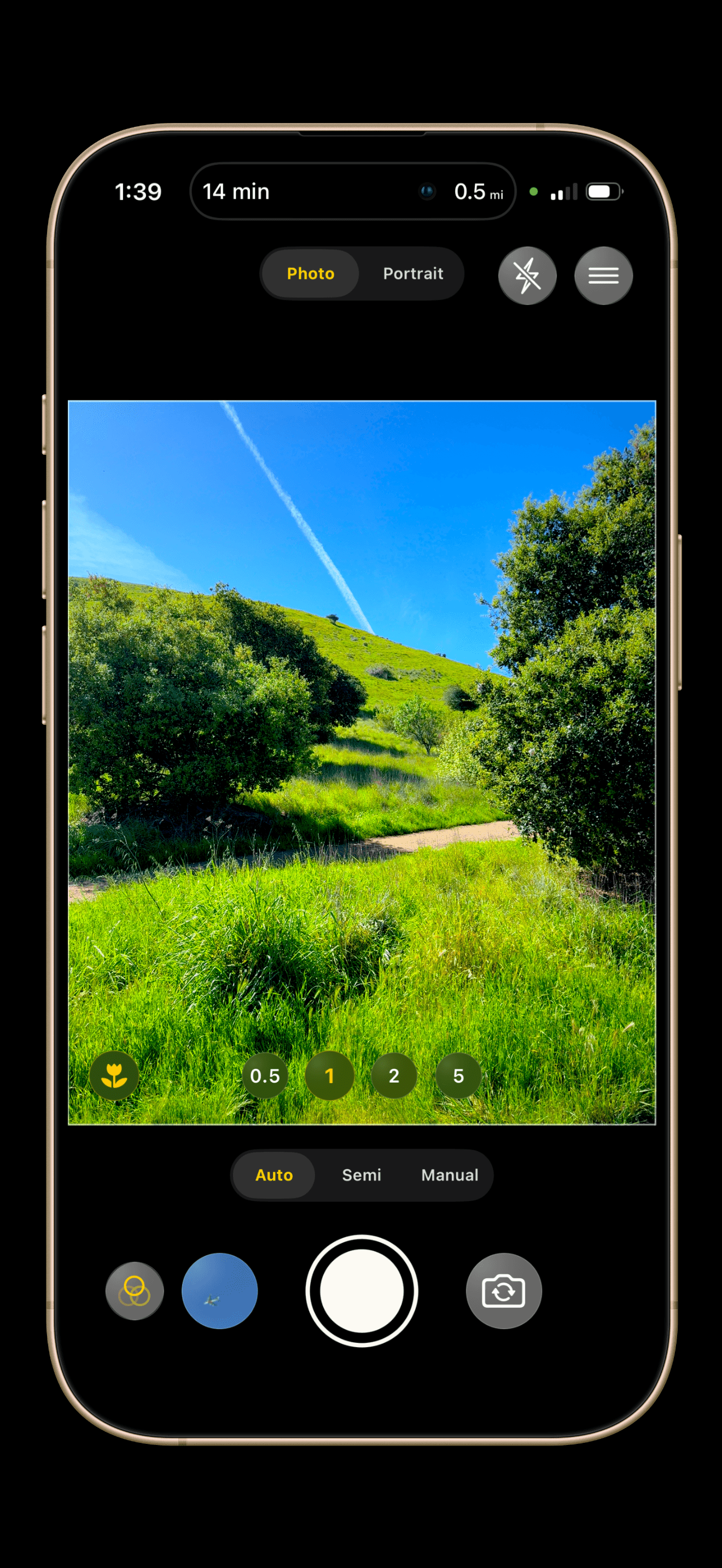
Lumen Camera operates in three primary exposure modes, easily toggled from the main screen, plus a dedicated Portrait mode.
2.1 Auto Mode
The default mode designed for effortless, intelligent capture.
Intelligent Zoom: Uses Apple’s virtual multi-camera system. Zooming from 0.5x to 5x+ is completely seamless, smoothly transitioning between physical lenses.
Quick Adjustments: Tap anywhere on the viewfinder to set the focus point. Once focused, drag your finger vertically to quickly adjust the Exposure Compensation (EV).
2.2 Semi-Manual Mode (Priority Mode)
An intelligent "Aperture/Shutter Priority" equivalent for mobile, powered by our custom Linked Exposure Calculator.
How it Works: You lock either ISO or Shutter Speed, and the app automatically calculates and adjusts the other parameter in real-time to maintain perfect exposure.
EV Compensation: Because the system balances exposure for you, the EV slider remains active. Adjusting EV tells the calculator to intentionally brighten or darken the target exposure.
Note: If your calculation hits the hardware limits of the camera lens, a brief toast warning will appear.
2.3 Full Manual Mode
Complete, independent control over every aspect of your camera's sensor.
Independent Controls: Adjust ISO, Shutter Speed, White Balance (Kelvin), and Focus independently.
Exposure Meter: When both ISO and Shutter are locked, the EV slider is disabled. Instead, an
ExposureMeterappears at the top of the screen. Acting like a DSLR light meter, it shows exactly how many stops over or under-exposed your manual settings are compared to the scene's baseline auto-exposure.Lens Switching: In Manual and Semi-Manual modes, zooming past a physical lens boundary (e.g., Wide to Telephoto) performs a "hot-swap" of the physical camera. If your current manual settings are incompatible with the new lens, they will intelligently reset to Auto.
2.4 Portrait Mode
Achieve studio-quality bokeh and depth-of-field using hardware depth data combined with Vision ML.
Live Blur Preview: The viewfinder provides a real-time, high-framerate estimate of the background blur. A toast will remind you that the "blur preview is an estimate."
High-Fidelity Capture: When you press the shutter, the app captures a high-resolution image alongside a high-fidelity Depth Map, Portrait Effects Matte, and Semantic Segmentation Mattes (hair, glasses, teeth) to render the final, perfect bokeh.
Format Limitations: Capturing true depth requires specific sensor configurations. RAW formats (ProRAW/Bayer RAW) are disabled in Portrait Mode. If you enter Portrait Mode while a RAW format is selected, the app will automatically fall back to the Standard (HEIC) format.
3. Advanced Manual Controls & Tools
Accessed via the Orbital Control Hub on the left edge of the screen, these tools slide out a Bottom Control Strip for precise adjustments.
3.1 Core Parameters
ISO & Shutter Speed: Direct sensor control for freezing action or capturing low light.
White Balance: Choose from standard presets (Sun, Cloud, Tungsten, etc.) or use the continuous slider to dial in the exact Kelvin color temperature.
Focus: Switch from Auto-Focus (AF) to Manual Focus (MF). The slider physically moves the lens position from macro distances out to infinity.
3.2 Resetting to Auto
It is easy to bail out of manual overrides:
Manual Status Chip: The HUD at the top displays your current ISO, Shutter, and EV. Tap it to open a menu and select "Reset All to Auto" or reset individual parameters.
Mode Toggle: Switching the main mode back to "Auto" drops all overrides instantly.
Slider Snap-back: The bottom sliders feature magnetic targets that allow you to snap a parameter back to its auto-calculated default easily.
3.3 Focus Peaking
Nail your manual focus perfectly.
What it does: Uses GPU-accelerated edge-detection to highlight the sharpest areas of your frame with a colored overlay mask.
How to use: Toggle it directly from the Focus control panel. When you are actively dragging the manual focus slider, peaking receives a "sensitivity boost" to make the in-focus areas highly visible.
3.4 Focus Loupe
Pixel-perfect critical focusing.
What it does: Provides a circular, picture-in-picture magnified view of the camera feed (up to 5x zoom) with an optional center crosshair. You can drag the loupe anywhere on the screen.
Modes:
Auto: Appears only while your finger is dragging the manual focus slider, then vanishes.
On: Remains persistently visible.
Off: Disabled.
3.5 Histogram
Monitor your tonal distribution to avoid clipped highlights or crushed shadows.
Digital View: A detailed, continuous smooth curve representing the image data.
Analog View: A retro 32-bar graph featuring decaying "peak-hold" indicators.
Data Feeds: Toggle between
Luma(overall brightness) andRGB(individual Red, Green, and Blue color channels).
4. Photo Formats & Quality
Access these settings via the top menu or the main Settings page. Formats depend on your specific iPhone model's hardware.
4.1 Standard (HEIF/JPEG)
The efficient, default compressed format.
Optimized: Targets 24MP if your device supports it, falling back to 12MP.
Maximum: Captures the full 48MP sensor resolution when available.
4.2 Lumen Enhanced (LE)
Our custom, high-quality computational pipeline—the recommended format for the best balance of quality and storage.
How it works: It captures the initial photo at the maximum 48MP to utilize Apple's Deep Fusion and Smart HDR. It then uses GPU-accelerated supersampling to intelligently downscale the image to ~24.5MP.
Benefits: Drastically reduces file size (3-5MB vs. 7-10MB for 48MP) while minimizing noise, preserving fine details, EXIF data, and HDR gain maps.
4.3 RAW Formats
For professional post-processing.
Apple ProRAW (DNG): Apple's computational RAW, retaining Smart HDR data but allowing extreme editing flexibility. Available in 12MP or 48MP.
Bayer RAW (DNG): Standard, uncompressed sensor RAW data directly from the camera hardware.
Crucial Limitation: RAW formats cannot be saved to the App's internal private gallery. If you select a RAW format, your Save Destination must be set to the iOS "Photos" app.
[📸 Placeholder: Screenshot of the Settings -> Format & Quality menu showing the different format options]
5. Viewfinder UI & Quick Controls
5.1 Zoom Controls
Zoom Pills: Quick-jump buttons (0.5x, 1x, 2x, 5x) sit above the shutter.
Zoom Rail: Pinch the screen, or long-press a pill, to expand the pills into a continuous slider with magnetic detents for precise focal lengths.
[📸 Placeholder: Screenshot showing the expanded Zoom Rail slider]
5.2 Aspect Ratios
Options: Choose between 4:3 (Native), 1:1 (Square), 16:9, and 4:5.
Behavior: The viewfinder will apply a crop mask (letterbox/pillarbox). The camera captures the full native 4:3 sensor data, and the app performs a precise, lossless center-crop post-capture, preserving all metadata.
5.3 Cinematic Filters
Apply real-time, non-destructive color grading.
Live Preview: Select a filter (like the classic Cinematic teal/warm LUT), and the viewfinder updates in real-time. Long-press the viewfinder to temporarily hide the filter and compare it to the original.
Format Interactions:
Lumen Enhanced: Filters are applied natively inside the GPU pipeline to prevent double-compression.
RAW Limitations: If you shoot in ProRAW/Bayer RAW with a filter applied, the app will process the RAW data into a filtered
CIImageand save it as a Standard (HEIC) file. A warning toast will notify you of this fallback.
[📸 Placeholder: Screenshot of the Filters menu open at the bottom of the screen with a cinematic filter applied]
5.4 Flash, Grid & Level
Flash: Tap the flash icon to cycle (Off, Auto, On), or long-press it to open a direct selection menu.
Grid & Level: Toggle the rule-of-thirds grid and the center horizon level from the top quick menu to ensure perfect framing.
6. The Unified Gallery & Security
Lumen Camera features a powerful built-in gallery that respects your privacy.
6.1 Save Destinations
Control exactly where your photos go from the Settings menu or the top quick menu.
Photos (Default): Saves captures directly to your native iOS Photos Library.
App: Saves captures to a private, sandboxed storage area entirely within Lumen Camera. These photos will not appear in your iOS camera roll.
[📸 Placeholder: Screenshot of the Quick Menu showing the Save Destination toggle (Photos vs App)]
6.2 Gallery Interface
The gallery features a fluid interface with four main tabs:
App: Photos saved privately within Lumen Camera.
Photos: Photos saved to your iOS Library.
All: A unified view of both destinations.
Faves: Photos you have favorited (tap the heart icon to see a custom "liquid heart" animation).
6.3 Viewing & Gestures
Zoom: Double-tap a photo to instantly zoom up to 4x.
Dismiss: Swipe down on a full-screen photo to smoothly dismiss the viewer and return to the grid.
Multi-Select: Long-press any photo in the grid to trigger a fluid drag-selection mode. Swipe across multiple thumbnails to select them rapidly for deletion or sharing.
[📸 Placeholder: Screenshot of the Gallery Grid view showing the App/Photos/All/Faves tabs]
6.4 Gallery Lock (Privacy)
Protect your "App" destination photos from prying eyes.
Setup: Go to Settings -> Gallery Lock. Set up a custom passcode.
Biometrics: Once a passcode is set, you can enable Face ID, Touch ID, or Optic ID for instant unlocking.
Auto-Lock: The gallery locks securely in memory. Anytime you leave the app or send it to the background, the gallery instantly locks itself.
[📸 Placeholder: Screenshot of the Passcode / FaceID unlock prompt when opening the Gallery]
7. Global Settings & Preferences
Access the full settings menu via the gear icon in the top corner.
Auto Enhance: Automatically applies an intelligent Core Image enhancement pass to standard photos to boost colors and shadows.
Mirror Front Camera: Reverses the horizontal orientation of selfies so the final photo matches exactly what you see in the viewfinder.
Haptics: Toggles the premium system-wide vibration feedback you feel when pressing buttons or moving sliders.
Toast Messages: Enables or disables the small, informative pop-up notification banners at the top of the screen.
Volume Button Shutter: Allows you to trigger the camera shutter using the physical volume up/down hardware buttons on your iPhone.
Blur Preview: Toggles whether the simulated depth-of-field blur is shown live in the viewfinder when using Portrait Mode.
Shutter Style: A cosmetic setting to change the appearance of your capture button (Choose from Metallic, Satin, Glass, Polka, or Apple Classic).
Gallery Mode: Force the in-app gallery to use a Light or Dark theme, independent of your system-wide iOS settings.
[📸 Placeholder: Screenshot of the main Settings menu showing the general preference toggles]
Thank you for using Lumen Camera. We hope this manual helps you capture your perfect shot.
2.2 Semi-Manual Mode (Priority Mode)
An intelligent "Aperture/Shutter Priority" equivalent for mobile, powered by our custom Linked Exposure Calculator.
How it Works: You lock either ISO or Shutter Speed, and the app automatically calculates and adjusts the other parameter in real-time to maintain perfect exposure.
EV Compensation: Because the system balances exposure for you, the EV slider remains active. Adjusting EV tells the calculator to intentionally brighten or darken the target exposure.
Note: If your calculation hits the hardware limits of the camera lens, a brief toast warning will appear.
[📸 Placeholder: Screenshot in Semi-Manual mode, showing the bottom control strip with ISO locked and Shutter Speed auto-adjusting]
2.3 Full Manual Mode
Complete, independent control over every aspect of your camera's sensor.
Independent Controls: Adjust ISO, Shutter Speed, White Balance (Kelvin), and Focus independently.
Exposure Meter: When both ISO and Shutter are locked, the EV slider is disabled. Instead, an
ExposureMeterappears at the top of the screen. Acting like a DSLR light meter, it shows exactly how many stops over or under-exposed your manual settings are compared to the scene's baseline auto-exposure.Lens Switching: In Manual and Semi-Manual modes, zooming past a physical lens boundary (e.g., Wide to Telephoto) performs a "hot-swap" of the physical camera. If your current manual settings are incompatible with the new lens, they will intelligently reset to Auto.
[📸 Placeholder: Screenshot of Full Manual mode showing the Exposure Meter at the top and manual sliders at the bottom]
2.4 Portrait Mode
Achieve studio-quality bokeh and depth-of-field using hardware depth data combined with Vision ML.
Live Blur Preview: The viewfinder provides a real-time, high-framerate estimate of the background blur. A toast will remind you that the "blur preview is an estimate."
High-Fidelity Capture: When you press the shutter, the app captures a high-resolution image alongside a high-fidelity Depth Map, Portrait Effects Matte, and Semantic Segmentation Mattes (hair, glasses, teeth) to render the final, perfect bokeh.
Format Limitations: Capturing true depth requires specific sensor configurations. RAW formats (ProRAW/Bayer RAW) are disabled in Portrait Mode. If you enter Portrait Mode while a RAW format is selected, the app will automatically fall back to the Standard (HEIC) format.
[📸 Placeholder: Screenshot of Portrait mode with a subject in focus and the background blurred, showing the blur intensity slider]
3. Advanced Manual Controls & Tools
Accessed via the Orbital Control Hub on the left edge of the screen, these tools slide out a Bottom Control Strip for precise adjustments.
3.1 Core Parameters
ISO & Shutter Speed: Direct sensor control for freezing action or capturing low light.
White Balance: Choose from standard presets (Sun, Cloud, Tungsten, etc.) or use the continuous slider to dial in the exact Kelvin color temperature.
Focus: Switch from Auto-Focus (AF) to Manual Focus (MF). The slider physically moves the lens position from macro distances out to infinity.
[📸 Placeholder: Screenshot of the Orbital Control Hub expanded, with the White Balance Kelvin slider active]
3.2 Resetting to Auto
It is easy to bail out of manual overrides:
Manual Status Chip: The HUD at the top displays your current ISO, Shutter, and EV. Tap it to open a menu and select "Reset All to Auto" or reset individual parameters.
Mode Toggle: Switching the main mode back to "Auto" drops all overrides instantly.
Slider Snap-back: The bottom sliders feature magnetic targets that allow you to snap a parameter back to its auto-calculated default easily.
[📸 Placeholder: Screenshot of the Manual Status Chip menu showing "Reset All to Auto"]
3.3 Focus Peaking
Nail your manual focus perfectly.
What it does: Uses GPU-accelerated edge-detection to highlight the sharpest areas of your frame with a colored overlay mask.
How to use: Toggle it directly from the Focus control panel. When you are actively dragging the manual focus slider, peaking receives a "sensitivity boost" to make the in-focus areas highly visible.
[📸 Placeholder: Screenshot showing Focus Peaking highlighting the edges of an in-focus subject in green/red]
3.4 Focus Loupe
Pixel-perfect critical focusing.
What it does: Provides a circular, picture-in-picture magnified view of the camera feed (up to 5x zoom) with an optional center crosshair. You can drag the loupe anywhere on the screen.
Modes:
Auto: Appears only while your finger is dragging the manual focus slider, then vanishes.
On: Remains persistently visible.
Off: Disabled.
[📸 Placeholder: Screenshot showing the Focus Loupe magnifying a specific detail of the scene]
3.5 Histogram
Monitor your tonal distribution to avoid clipped highlights or crushed shadows.
Digital View: A detailed, continuous smooth curve representing the image data.
Analog View: A retro 32-bar graph featuring decaying "peak-hold" indicators.
Data Feeds: Toggle between
Luma(overall brightness) andRGB(individual Red, Green, and Blue color channels).
[📸 Placeholder: Screenshot showing the RGB Digital Histogram active on the viewfinder]
4. Photo Formats & Quality
Access these settings via the top menu or the main Settings page. Formats depend on your specific iPhone model's hardware.
4.1 Standard (HEIF/JPEG)
The efficient, default compressed format.
Optimized: Targets 24MP if your device supports it, falling back to 12MP.
Maximum: Captures the full 48MP sensor resolution when available.
4.2 Lumen Enhanced (LE)
Our custom, high-quality computational pipeline—the recommended format for the best balance of quality and storage.
How it works: It captures the initial photo at the maximum 48MP to utilize Apple's Deep Fusion and Smart HDR. It then uses GPU-accelerated supersampling to intelligently downscale the image to ~24.5MP.
Benefits: Drastically reduces file size (3-5MB vs. 7-10MB for 48MP) while minimizing noise, preserving fine details, EXIF data, and HDR gain maps.
4.3 RAW Formats
For professional post-processing.
Apple ProRAW (DNG): Apple's computational RAW, retaining Smart HDR data but allowing extreme editing flexibility. Available in 12MP or 48MP.
Bayer RAW (DNG): Standard, uncompressed sensor RAW data directly from the camera hardware.
Crucial Limitation: RAW formats cannot be saved to the App's internal private gallery. If you select a RAW format, your Save Destination must be set to the iOS "Photos" app.
[📸 Placeholder: Screenshot of the Settings -> Format & Quality menu showing the different format options]
5. Viewfinder UI & Quick Controls
5.1 Zoom Controls
Zoom Pills: Quick-jump buttons (0.5x, 1x, 2x, 5x) sit above the shutter.
Zoom Rail: Pinch the screen, or long-press a pill, to expand the pills into a continuous slider with magnetic detents for precise focal lengths.
[📸 Placeholder: Screenshot showing the expanded Zoom Rail slider]
5.2 Aspect Ratios
Options: Choose between 4:3 (Native), 1:1 (Square), 16:9, and 4:5.
Behavior: The viewfinder will apply a crop mask (letterbox/pillarbox). The camera captures the full native 4:3 sensor data, and the app performs a precise, lossless center-crop post-capture, preserving all metadata.
5.3 Cinematic Filters
Apply real-time, non-destructive color grading.
Live Preview: Select a filter (like the classic Cinematic teal/warm LUT), and the viewfinder updates in real-time. Long-press the viewfinder to temporarily hide the filter and compare it to the original.
Format Interactions:
Lumen Enhanced: Filters are applied natively inside the GPU pipeline to prevent double-compression.
RAW Limitations: If you shoot in ProRAW/Bayer RAW with a filter applied, the app will process the RAW data into a filtered
CIImageand save it as a Standard (HEIC) file. A warning toast will notify you of this fallback.
[📸 Placeholder: Screenshot of the Filters menu open at the bottom of the screen with a cinematic filter applied]
5.4 Flash, Grid & Level
Flash: Tap the flash icon to cycle (Off, Auto, On), or long-press it to open a direct selection menu.
Grid & Level: Toggle the rule-of-thirds grid and the center horizon level from the top quick menu to ensure perfect framing.
6. The Unified Gallery & Security
Lumen Camera features a powerful built-in gallery that respects your privacy.
6.1 Save Destinations
Control exactly where your photos go from the Settings menu or the top quick menu.
Photos (Default): Saves captures directly to your native iOS Photos Library.
App: Saves captures to a private, sandboxed storage area entirely within Lumen Camera. These photos will not appear in your iOS camera roll.
[📸 Placeholder: Screenshot of the Quick Menu showing the Save Destination toggle (Photos vs App)]
6.2 Gallery Interface
The gallery features a fluid interface with four main tabs:
App: Photos saved privately within Lumen Camera.
Photos: Photos saved to your iOS Library.
All: A unified view of both destinations.
Faves: Photos you have favorited (tap the heart icon to see a custom "liquid heart" animation).
6.3 Viewing & Gestures
Zoom: Double-tap a photo to instantly zoom up to 4x.
Dismiss: Swipe down on a full-screen photo to smoothly dismiss the viewer and return to the grid.
Multi-Select: Long-press any photo in the grid to trigger a fluid drag-selection mode. Swipe across multiple thumbnails to select them rapidly for deletion or sharing.
[📸 Placeholder: Screenshot of the Gallery Grid view showing the App/Photos/All/Faves tabs]
6.4 Gallery Lock (Privacy)
Protect your "App" destination photos from prying eyes.
Setup: Go to Settings -> Gallery Lock. Set up a custom passcode.
Biometrics: Once a passcode is set, you can enable Face ID, Touch ID, or Optic ID for instant unlocking.
Auto-Lock: The gallery locks securely in memory. Anytime you leave the app or send it to the background, the gallery instantly locks itself.
[📸 Placeholder: Screenshot of the Passcode / FaceID unlock prompt when opening the Gallery]
7. Global Settings & Preferences
Access the full settings menu via the gear icon in the top corner.
Auto Enhance: Automatically applies an intelligent Core Image enhancement pass to standard photos to boost colors and shadows.
Mirror Front Camera: Reverses the horizontal orientation of selfies so the final photo matches exactly what you see in the viewfinder.
Haptics: Toggles the premium system-wide vibration feedback you feel when pressing buttons or moving sliders.
Toast Messages: Enables or disables the small, informative pop-up notification banners at the top of the screen.
Volume Button Shutter: Allows you to trigger the camera shutter using the physical volume up/down hardware buttons on your iPhone.
Blur Preview: Toggles whether the simulated depth-of-field blur is shown live in the viewfinder when using Portrait Mode.
Shutter Style: A cosmetic setting to change the appearance of your capture button (Choose from Metallic, Satin, Glass, Polka, or Apple Classic).
Gallery Mode: Force the in-app gallery to use a Light or Dark theme, independent of your system-wide iOS settings.
[📸 Placeholder: Screenshot of the main Settings menu showing the general preference toggles]
Thank you for using Lumen Camera. We hope this manual helps you capture your perfect shot.